Getting started
Read first, sign in later
Section titled “Read first, sign in later”On skyreader.app, Start Reading opens a guest library: a curated set of feeds you can read right away, no account needed. As a guest you can read, mark things read, save articles, highlight, and build a daily magazine. Everything stays on your device.
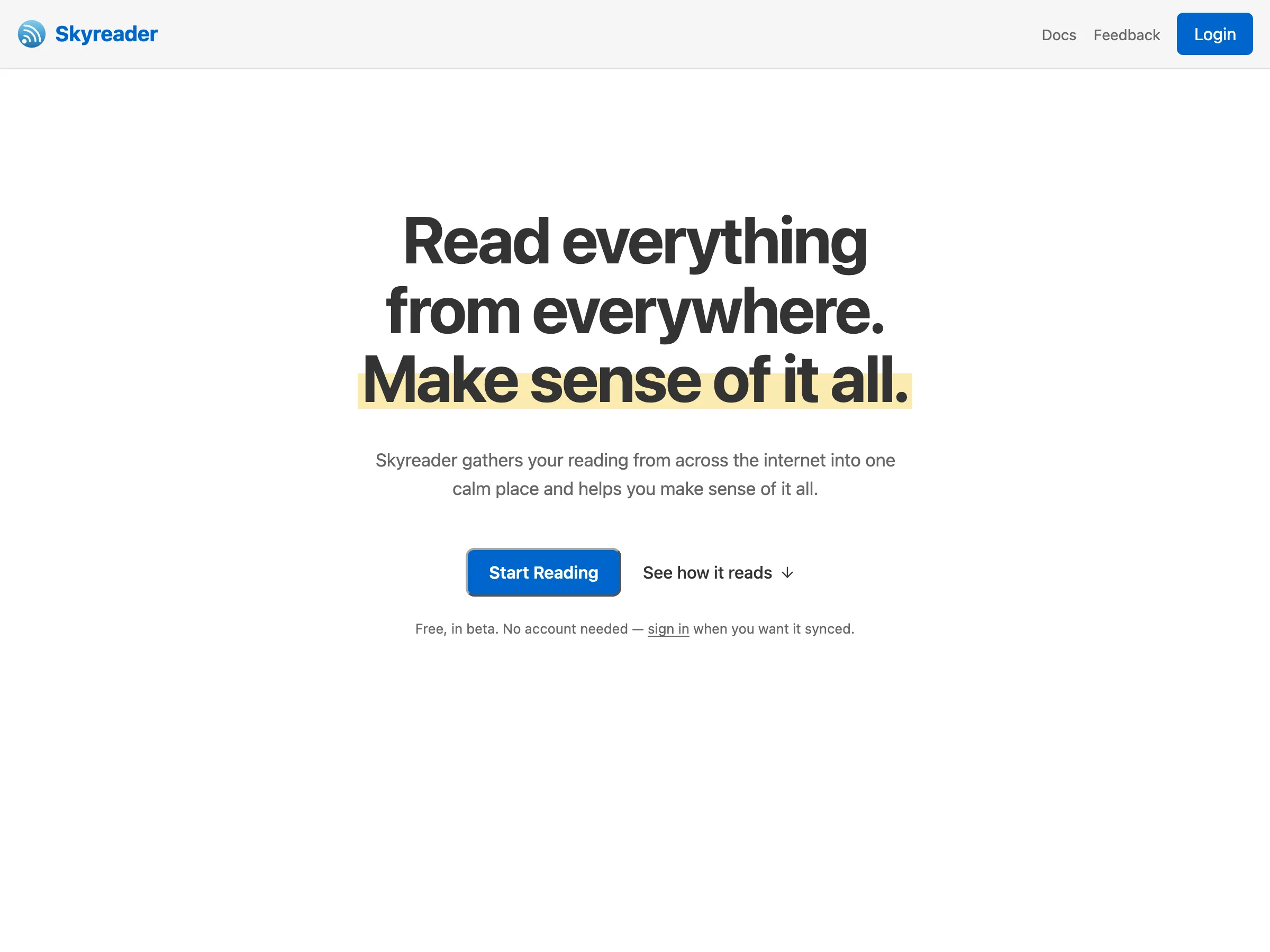
Logging in with an account allows you to add your own feeds, sync across devices, share to your linkblog, and save articles to Semble or Margin.
Signing in
Section titled “Signing in”Skyreader uses your Atmosphere account: the login for the open network Skyreader runs on. Your account lives with a provider you choose, not locked inside one app. Bluesky is the most popular provider, so for most people this means typing their Bluesky handle (like you.bsky.social), but any provider works.
If you’re new to the Atmosphere, the sign-in page has a sign-up path that creates an account with the provider of your choice.
There is no separate Skyreader password. Sign-in happens on your provider’s page, and Skyreader never sees your credentials.
Sign-in asks only for the basics. When you first turn on a feature that writes to another Atmospheric app, such as backing your saves with Semble or Margin, Skyreader asks for that one permission. Your provider confirms it and you come straight back, still signed in.
Finding your way around
Section titled “Finding your way around”- Home is the front page: your reading, resumable where you left off. On a new account, it starts with the links people you follow are sharing, and ways to add your own sources.
- Feeds is the full library, with the sidebar of sources and channels.
- Saved holds articles you’ve saved, from your feeds or from anywhere on the web.
- Daily is your magazine, built from your saves. See Reading.
- Highlights collects every passage you’ve highlighted, with a review deck.
- Linkblog is where your shared links live. See Sharing.
Installing the app
Section titled “Installing the app”Skyreader is a web app you can install:
- iPhone / iPad: in Safari, Share, then Add to Home Screen.
- Android: in Chrome, menu, then Add to Home screen (or Install app). Once installed, Skyreader appears in the system share sheet, so you can save articles from any app.
- Desktop: Chrome and Edge show an install icon in the address bar.
Installed or not, the app works offline: your feeds, saves, and highlights are stored locally, and anything you do offline syncs when you reconnect.