
Saving and highlights
Saving
Section titled “Saving”Save an article from its card or from the reader, or from outside Skyreader entirely: the Chrome extension, the bookmarklet, the iOS shortcut, or the Android share sheet (see Adding sources). Saves keep the full article text, so they read fine offline.
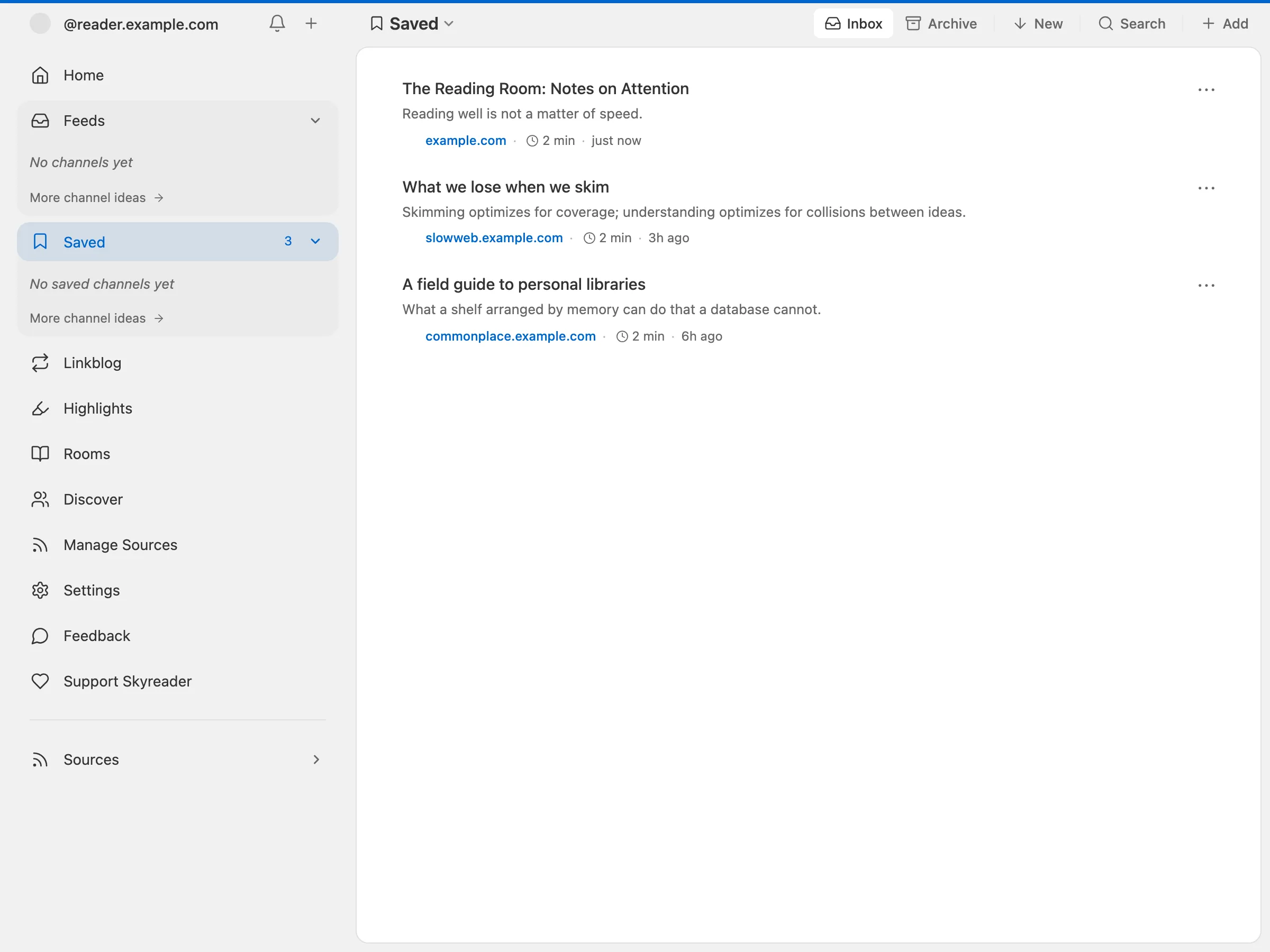
Saves are private to Skyreader by default. Nothing is published.
When a site won’t let Skyreader read it
Section titled “When a site won’t let Skyreader read it”Some sites refuse automated readers, so Skyreader’s servers can’t fetch the article even though it opens fine in your browser. The save still goes through: you get the link (and its title, when Skyreader knows it) with a note in place of the text. To get the full text, open the article and save it with the Chrome or Firefox extension, which reads the page you already have open. That replaces the note.
Backing your saves with Semble or Margin
Section titled “Backing your saves with Semble or Margin”If you use Semble or Margin, you can back your Saved list with one of them (Settings → Library & privacy → Saved articles). Your Saved list becomes a collection there: edit it in either app, or in any Atmospheric app, and the two stay in sync.
One thing to know before turning it on: backing publishes all of your saves publicly, because Semble and Margin collections are public.
Highlights
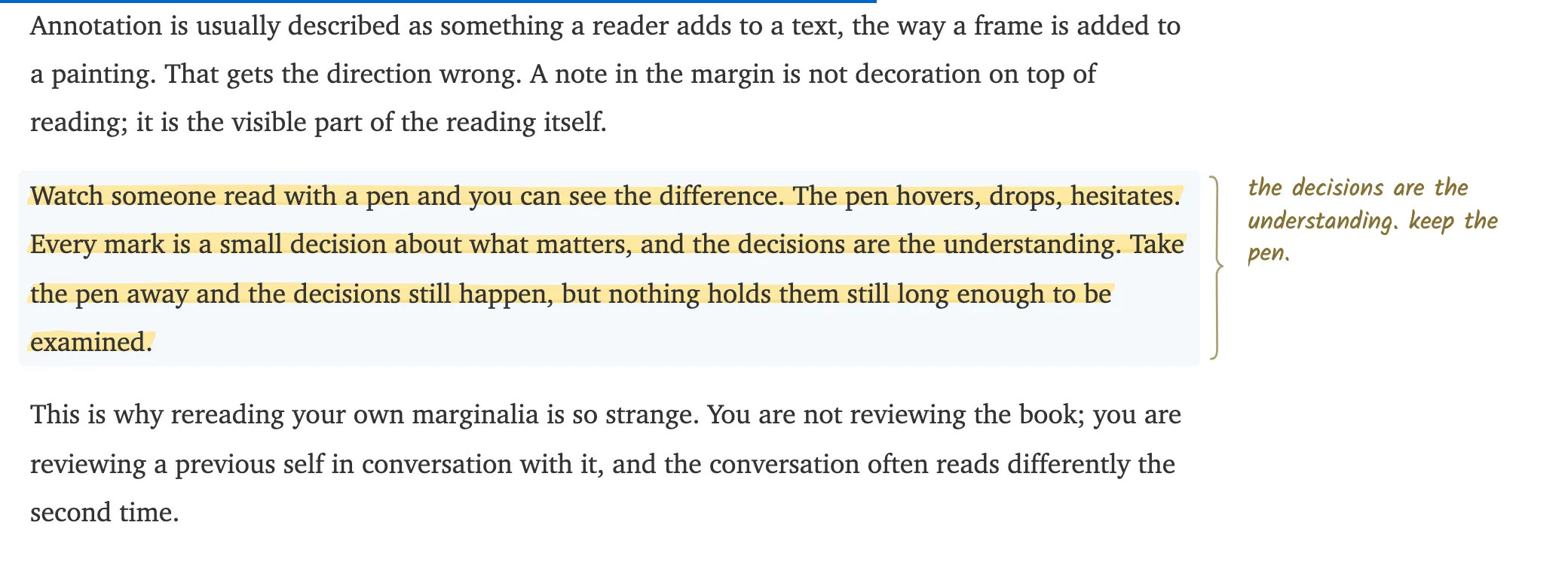
Section titled “Highlights”While reading, double-click a paragraph or select text to highlight it. Drag the handles at either end to adjust what a highlight covers.
Notes in the margin
Section titled “Notes in the margin”Notes live beside the text, the way they would in a book. On a wide screen, every highlight gets a small bracket in the margin. Click the bracket (or choose Note after selecting text) and write right there, next to the passage. Your note saves when you click away or press Escape.
On a phone, or when reading in pages, there’s no margin to write in. An asterisk after a passage means it has a note: tap it and the note unfolds under the paragraph.
Other readers’ notes from Margin appear in the left margin, in pencil, when Community highlights is on.
Highlights are private to Skyreader and sync across your devices. Two optional Margin connections exist, in both directions:
- Publish puts a single highlight, and its note, on Margin, where anyone can see it. It’s per-highlight and explicit; nothing is published unless you choose it.
- Bring in highlights from Margin (Settings → Reading → Highlights) adds your existing Margin highlights to your review deck here.
- Community highlights (Settings → Reading → Highlights) shows passages other readers highlighted on Margin while you read saved articles.
Posting a highlight to Bluesky
Section titled “Posting a highlight to Bluesky”Choose the Bluesky button on a highlight (in the reader, the Highlights page, or the review deck) to post it from your own account. In the reader, the button is there as soon as you select text, so you can post a passage without highlighting it first. The first time, Skyreader asks for permission to post for you.
The passage goes out as an image (a text shot): the quote set in the article’s type, signed with the article’s title and site, with the quote itself as the image’s description. Your note becomes the post’s text, which you can edit before posting; the article’s link rides in the text. Switch Quote as to Text to quote the passage in the text instead, with the article’s link card. Either way the post holds 300 characters; a ring appears as you near the limit.
Once posted, it’s a public Bluesky post like any other: manage it in Bluesky.
The review deck
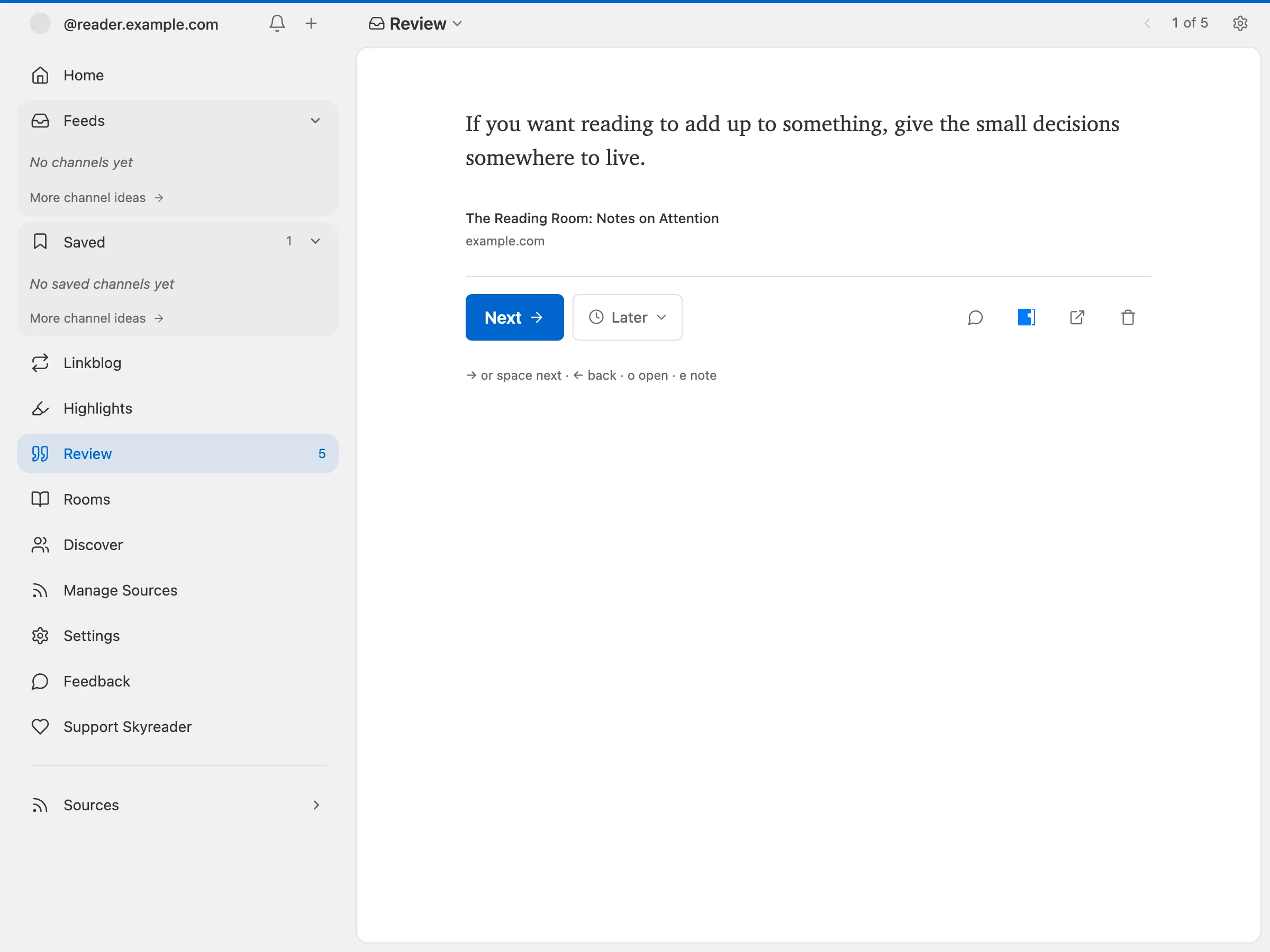
Section titled “The review deck”The Highlights page collects every highlight, grouped by article. Its Review deck deals you a small handful at a time, so old highlights resurface instead of piling up. Each highlight carries a review intent: soon, later, someday, or never (kept, but out of rotation). A few keys drive the whole deck: arrow keys to move, e to edit the note, o to open the article.
Limits
Section titled “Limits”The free plan includes 100 URL saves a month (saving from the web, your phone, or the extension); Supporters get 1,000. See Supporter.