
Adding sources
Skyreader reads three kinds of sources:
- RSS and Atom feeds: any blog, news site, or site that publishes a feed.
- standard.site publications: writing published on the Atmosphere, from apps like Leaflet.
- Email newsletters (Supporter): sent to a private address, read in Skyreader.
Add a feed
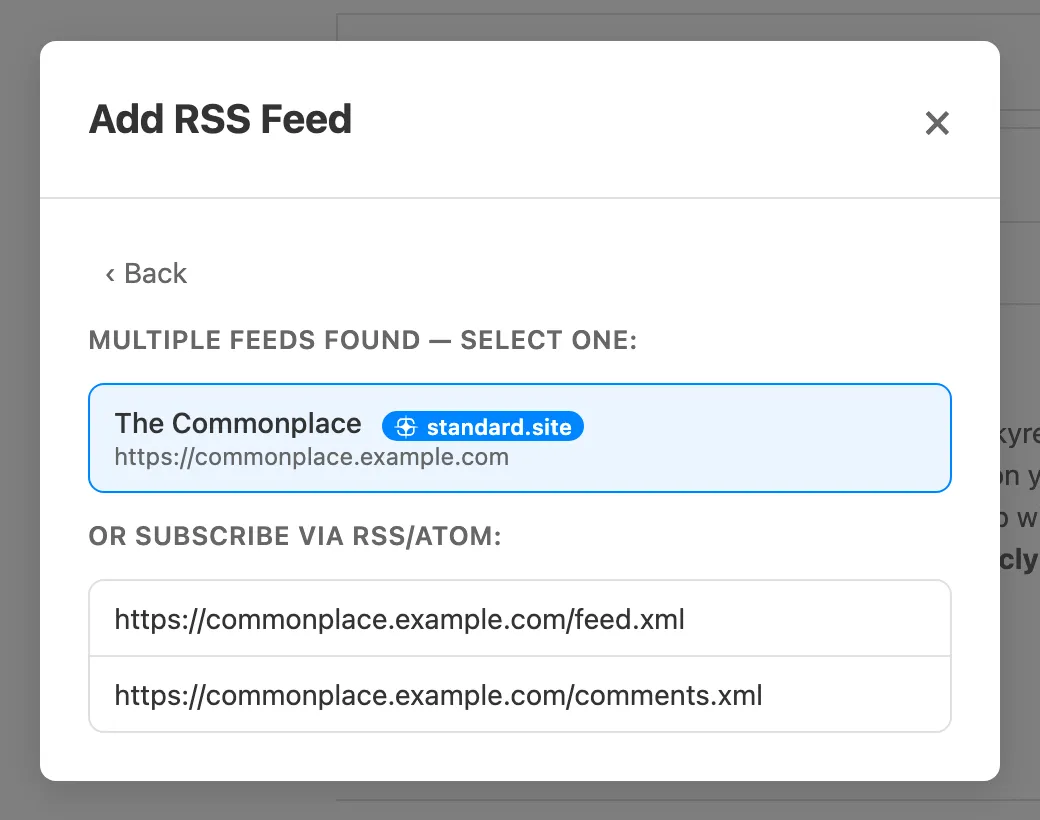
Section titled “Add a feed”Use the + button and choose Add RSS Feed. Paste any page URL, or just a domain; Skyreader finds the feeds on that page. One match subscribes you directly, several gives you a picker. When a site publishes both a standard.site publication and an RSS feed, the publication is listed first, since it usually carries the full text.
Follow a person
Section titled “Follow a person”Add @handle follows an Atmosphere account (Bluesky, Blacksky, and others). Search by handle or name, pick the account, and Skyreader finds their standard.site publications for you to subscribe to.
Email newsletters
Section titled “Email newsletters”Supporters get a private email address for newsletters. Find it in Settings → Newsletters, and use it when you sign up for a newsletter, or forward issues to it. Each sender becomes a source under Manage Sources → Newsletters, and each issue arrives as an article. A signup confirmation arrives the same way, so you can click its link right in the reader.
- Keep the address to yourself. Anything sent to it lands in your reader. If it leaks, Get a new address replaces it; newsletters you already have stay, and the old address stops working.
- Newsletters stay private. They aren’t shared with anyone, and Atmospheric sync never publishes them.
- Removing a newsletter stops its mail reaching Skyreader, but it doesn’t unsubscribe you with the sender. Blocked senders are listed in Settings → Newsletters, where you can let one back in.
- If you leave the Supporter plan, the address stops receiving mail. Newsletters you already have stay readable.
Import and export
Section titled “Import and export”Settings → Library & privacy → Import Feeds takes an OPML file, or a plain text file with one feed URL per line. You pick which feeds to bring in; duplicates are skipped automatically. Export OPML hands your whole subscription list back at any time. Your feeds are never locked in.
Save and subscribe from anywhere
Section titled “Save and subscribe from anywhere”You don’t have to be in Skyreader to add to it:
- Chrome extension: a toolbar button that saves the page you’re reading and lists the feeds it publishes, each with a subscribe button.
- Bookmarklets (desktop): drag Save to Skyreader and Subscribe in Skyreader from Settings → Save from anywhere to your bookmarks bar.
- iPhone / iPad: add the Save and Subscribe shortcuts from the same settings section; they appear in the share sheet.
- Android: install Skyreader to your home screen and it appears in the system share sheet.
Discover
Section titled “Discover”The Discover page suggests Skyreader linkblogs and standard.site publications owned by the accounts you follow on Bluesky, each on its own tab. One search covers both, and each tab shows how many match. To stop seeing an account’s publications, choose Hide account on its row.
Manage Sources shows a few of these suggestions under Find more, after your own sources.
Channels
Section titled “Channels”Channels group your library into views: by topic, by kind of source, or by any filter you like. Skyreader suggests some (a Newsletters channel for your newsletter-ish feeds, for example) and you can create your own. See Reading.
Limits
Section titled “Limits”The free plan includes 100 active feeds. Supporters get 1,000. See Supporter.